How to Create and Verify Checksum Files on Windows
A checksum file records a fingerprint for each file in a folder. You can use it later to confirm nothing has changed - useful for archiving, distributing software, or checking files after moving them to a new drive. TeraCopy can both generate and validate checksum files without any extra tools.
Create a checksum file for your source files
- Add the files you want to checksum to TeraCopy.
- Open the Options tab and change the hash algorithm if needed. The default is xxHash 3, which is one of the fastest available. Switch to MD5 or SHA-256 if you need to share the checksum file with other tools or people.
- Click the Test button. TeraCopy reads each file and calculates its checksum.
- When finished, click Save Hash to save the checksum file to the source folder. The file will use the extension matching your chosen algorithm (
.md5,.sha256,.xxh3,.blake3, etc.).
Create a checksum file for copied files
If you've already verified files after copying, TeraCopy has checksums for the destination files too. Click the fingerprint icon button to save those checksums to the target folder. This gives you a checksum file at the destination you can use to verify the copy again in the future.
Verify an existing checksum file
- Double-click any checksum file with a supported extension (.md5, .sha, .sha1, .sha256, .xxh, .blake3 and others). TeraCopy opens automatically.
- TeraCopy reads each file listed in the checksum file and compares the calculated hash to the stored one.
- Files that match are marked with a double checkmark icon. Files with a mismatched checksum are flagged with a yellow triangle warning icon.
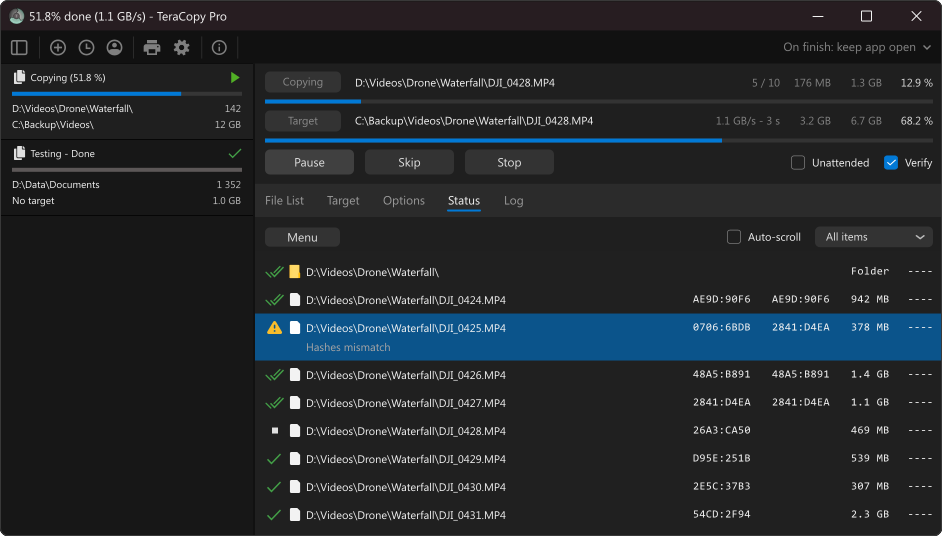
Resume an interrupted verification
If verification was stopped partway through - for example, due to a disconnection or a sleep event - you don't need to start over:
- Use the Added file selector to filter files that haven't been processed yet.
- Click the Verify button in TeraCopy.
- TeraCopy will continue from where it left off.
Supported checksum file formats
TeraCopy can read and write checksum files in all common formats. See which checksum format to use if you need to choose between them.