How to Verify Files After Copying in Windows
Copied files can look fine in Explorer but still be corrupted or incomplete - especially after a network transfer, a flaky USB drive, or an interrupted copy. TeraCopy verifies file integrity by comparing checksums of source and destination files, so you know every byte arrived intact.
Verify files automatically after every copy
- Start a copy in TeraCopy as usual.
- Before the transfer begins, enable the Verify checkbox.
- TeraCopy copies your files and calculates checksums on the fly.
- When copying finishes, verification starts automatically - TeraCopy reads each destination file, recalculates its checksum, and compares it to the source.
Verified files are marked with a double checkmark in the file list, along with matching checksum values.
Verify files after a copy is already complete
If you forgot to enable verification upfront, you can run it manually:
- Open the completed transfer in TeraCopy.
- Click the Verify button.
- TeraCopy reads files from the destination drive and compares their checksums to the source.
This works for any recent copy where TeraCopy still has the source checksums from the original transfer.
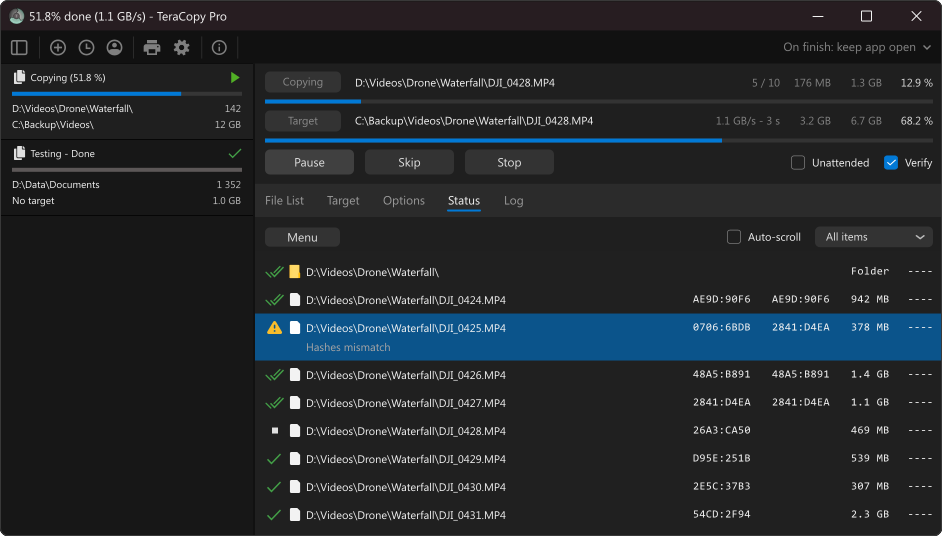
What to do if verification fails?
If a file's checksums don't match, TeraCopy will mark the file as failed. Retry the copy with failed files only.
When is verification worth it?
- Network copies - Wi-Fi and LAN transfers are more prone to silent corruption than local disk-to-disk copies.
- External and removable drives - USB sticks and portable hard drives can have unreliable connections.
- Large or irreplaceable files - video masters, photo archives, database backups, and project deliverables.
- Unattended overnight transfers - confirm everything completed correctly without watching the progress bar.
Checksum algorithm
TeraCopy supports many algorithms including MD5, SHA-256, xxHash, and BLAKE3. The default xxHash works well for most cases. See which checksum format to choose if you need compatibility with other tools or maximum speed.
Frequently asked questions
Does verification slow down the copy?
Yes, somewhat - TeraCopy has to read every destination file a second time to calculate checksums. On fast local SSDs the overhead is small; on network drives or slow USB devices it can add noticeable time. Enable Verify when integrity matters more than raw speed.
Can I save checksums for later validation?
Yes. TeraCopy can export checksum files (.md5, .sha, .blake3, and others) after a transfer.
Does TeraCopy verify during copy or only after?
Checksums for the source files are calculated during the copy itself. The Verify step runs afterward and re-reads destination files to confirm they match the source - a true read-back check, not just a size or timestamp comparison.